 Santa Caught on Camera
Catch Santa on your Ring doorbell camera
Screenshot your doorbell's live view and upload it. You get a 10-second clip of Santa leaving a sack of presents at your door, walking up to the camera and waving. Works with Ring, Blink, Google Nest, Eufy, Arlo and Vivint.
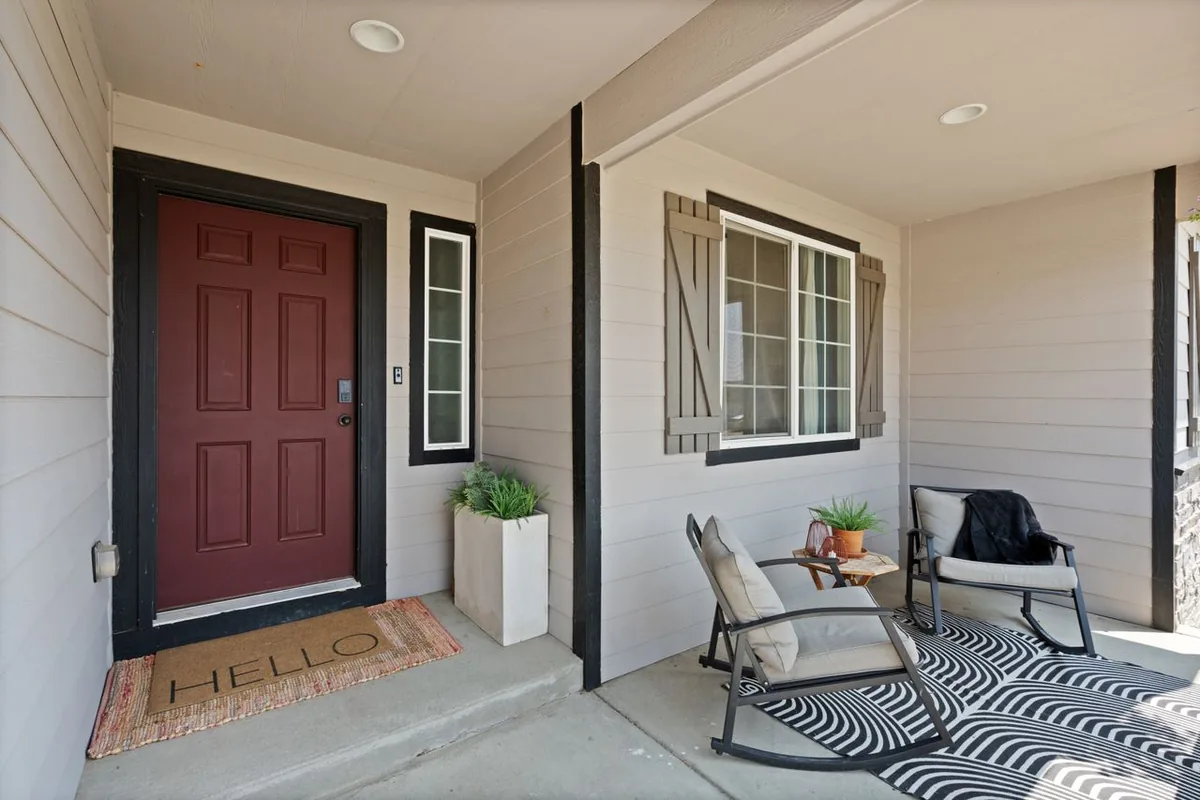
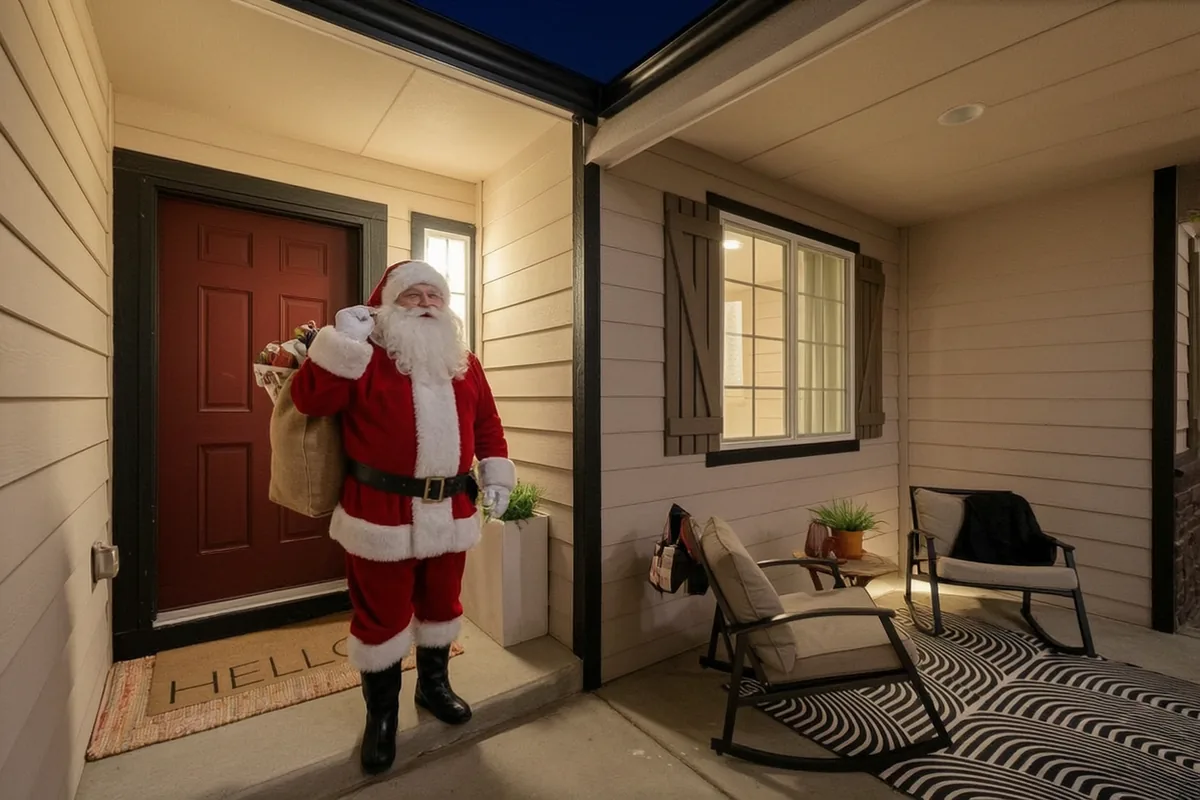
Sample clip from a stock photo of a porch. Yours starts from your doorbell screenshot.
Where should Santa show up?
A wide photo of the room with the tree or fireplace in it, taken from up high (stand on a chair), or a screenshot from your indoor camera app.A screenshot of your doorbell's live view (Ring, Blink, Nest, Eufy, Arlo, Vivint) or a photo of the porch taken from where the doorbell hangs.A landscape photo of your house from the driveway or street, with the whole roofline and plenty of sky in it.Preview picture free in about 30 seconds. The 10-second video is $6.99. Your photo is only used to make your clip and is never published.
Santa is sneaking into your photo…
Keep this tab open.
That is Santa at your house. Now make it move.
The video is 10 seconds of night-camera footage that starts from this exact picture. No watermark, yours to keep.
Secure payment by Stripe. Already paid? Restore my purchase
The download is the clean clip. The timestamp version adds the REC mark and a 12-24 night time, recorded in your browser. Save it to your phone now: the link on our side expires after 24 hours.
Get the right picture from your doorbell app
The clip starts from the exact picture you upload, so a screenshot from your own doorbell gives it the same fisheye angle the kids know from the real camera.
- Open the live view of your front door camera in its app: Ring, Blink, Google Home for Nest, Eufy Security, Arlo Secure or Vivint. Early evening with the porch light on looks closest to real night footage.
- Take a phone screenshot while the live picture is on screen. iPhone: side button and volume up together. Android: power and volume down.
- Crop it in your Photos app so only the camera picture is left. Remove the time bar, buttons and status icons; the timestamp version of your clip adds its own REC mark and camera time.
- Move anything you want Santa to step around before the screenshot: packages, bikes, the doormat. People in the frame are better left out, since the model may change them.
- Upload it above and pick "Front door". The free preview shows where Santa will stand.
What happens in the doorbell clip
- Santa walks onto the porch and sets the sack of presents by the door
- He looks around and spots the doorbell camera
- He steps right up to the lens and waves
- He turns and walks off the porch
The camera never moves and the picture stays grainy, the way a doorbell films at night. Santa's wave right at the lens is the moment kids replay.
Showing it on Christmas morning
- Put a real sack or a pile of presents where Santa left his in the clip, so the porch matches the video when the kids open the door.
- Save both downloads. The timestamp version, with REC and a 12-24 night time, is the one to show.
- Play it from your phone held sideways, or send it to the TV with AirPlay or Chromecast so everyone sees it at once.
- Say the doorbell caught something in the night and you saved the clip. More ideas, and answers to the questions kids ask, in the parents' plan.
Doorbell questions
Does the clip show up in my Ring app history?
No. Ring, Blink and Nest do not let anyone add clips to the event history. Play it from your phone's Photos and say you saved it from the doorbell app.
Will my phone get a motion alert?
No. Nothing is sent to your doorbell or its app. The clip is a normal video file on your phone.
Can I use a Blink, Nest, Eufy, Arlo or Vivint screenshot?
Yes. Any live-view screenshot works the same way, as long as you crop away the app's buttons.
Should the screenshot be taken at night?
An evening screenshot with the porch light on looks the most like your camera's own night footage. A daytime screenshot also works: the preview turns it into night.
My doorbell image is a tall square. Is that a problem?
No. Head-to-toe doorbells give a taller picture, and the clip keeps the shape of the photo you upload.
Other cameras: Santa in the living room, or Santa's sleigh over the house.